Most of British Columbia will keep the same time on November 1, 2026, instead of turning the clocks back an hour. The last spring-forward change was in March. The province calls its year-round time Pacific time (PCT), UTC−7.
For your computer, the important part is making sure Windows has the latest time-zone update and is using the right setting for your location.
Check your Windows settings
- Install the latest available Windows updates and restart if prompted.
- Right-click the date and time at the bottom-right of your screen.
- In Windows 10, choose Adjust date/time. In Windows 11, choose Adjust date and time.
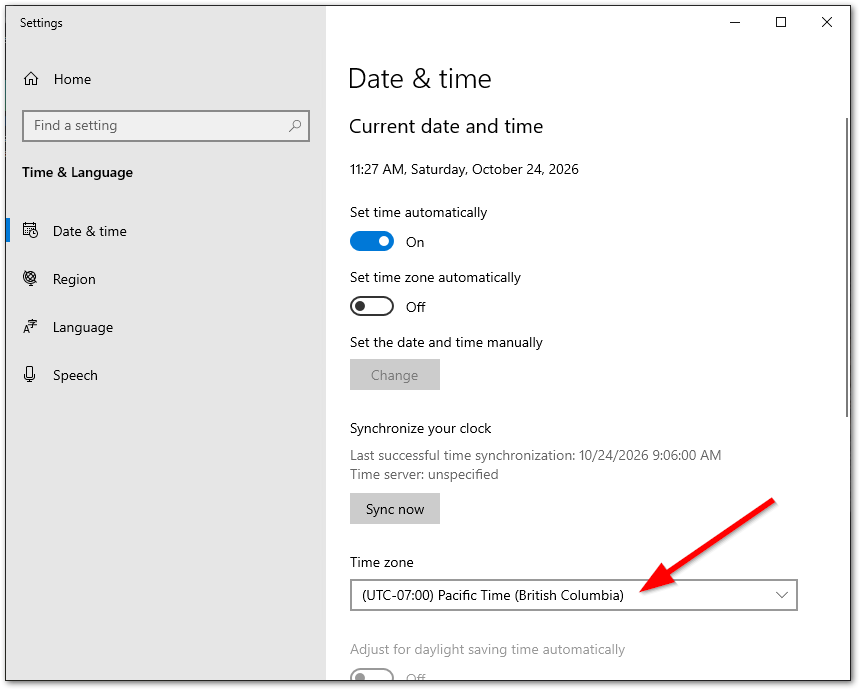
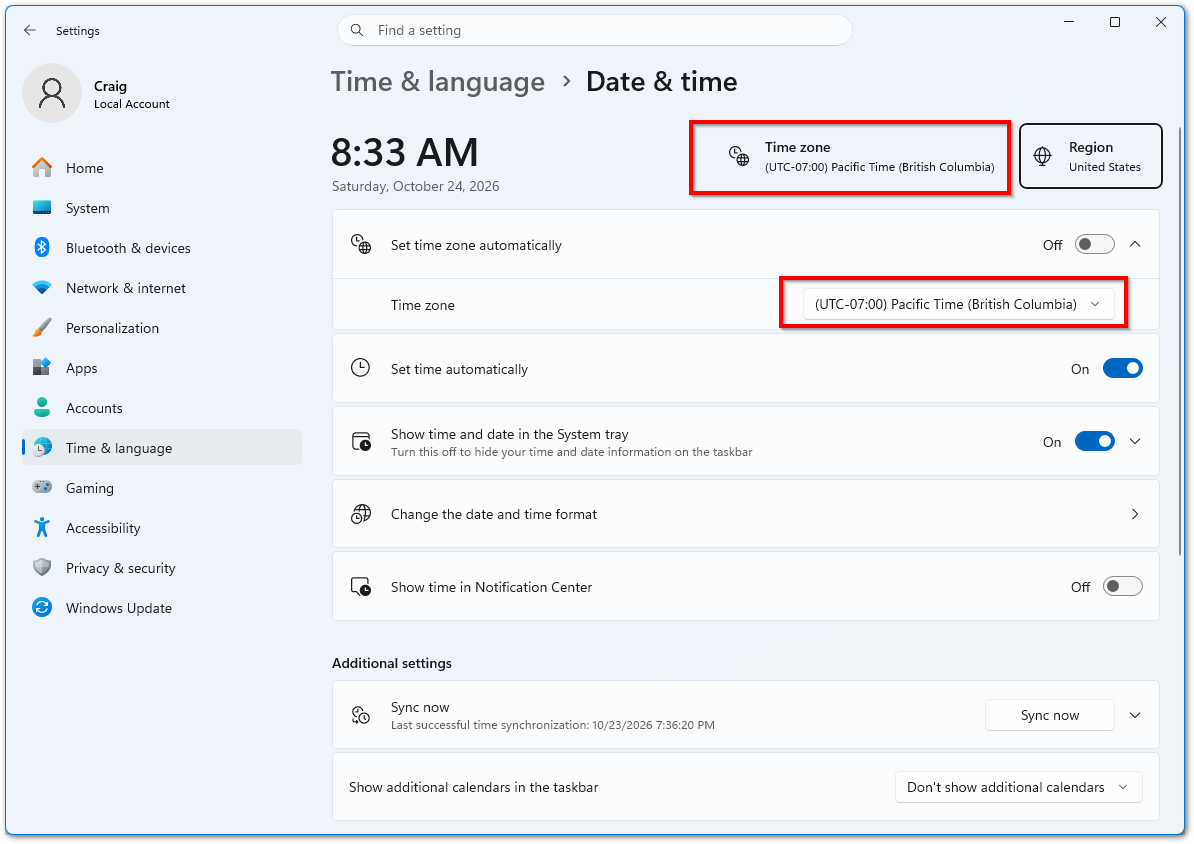
- Look for (UTC-07:00) Pacific Time (British Columbia).
If Windows sets your time zone automatically, check that it has selected the correct region. If you choose your time zone manually, select the British Columbia entry. These instructions apply to the parts of B.C. that follow Pacific time; some communities follow different local time arrangements.
Windows 10
The time zone appears in the Date & time settings:
Windows 11
The time zone appears near the top of Time & language → Date & time, and in the time-zone selection below:
If British Columbia isn't listed, check for Windows updates and restart. Windows 10 computers also need to be eligible for ongoing updates; see the Windows 10 article below.
Check your calendar, too
A correct computer clock doesn't necessarily mean every calendar appointment has updated. Check future appointments and recurring meetings on or after November 1, particularly in Outlook. Confirm important meeting times with the organizer if they look wrong.
If you're unsure about your settings, get in touch and I'll help you check.
Further information: B.C.'s permanent daylight saving time guidance, the province's PCT announcement, Microsoft's Windows time-zone update, and Microsoft's Outlook guidance.
For years, I've used ScreenConnect to connect remotely to clients' computers and provide support. I'm replacing it with RustDesk, which will serve the same purpose and can run quietly in the background.
What this means for existing clients
The changeover is at no charge to you. In most cases, I can install RustDesk remotely without needing you to do anything. If you normally keep ScreenConnect turned off, I'll coordinate with you first.
I'll confirm that RustDesk works on your computer before removing ScreenConnect, so that only RustDesk remains. Mac users: I'm hopeful this change will also let me provide more reliable remote support for you.
Questions about remote access?
If you have questions or concerns, or would like to review my remote access to your computer, please contact me. I'll be happy to discuss it with you.
Thank you for trusting me. Remote access has made providing support much easier, and I want you to feel comfortable with the software I use.
If you're still using Windows 10, you may have more time to plan your next step.
Microsoft's consumer Extended Security Updates (ESU) program now runs through October 12, 2027 for eligible personal computers. If you're already enrolled, Microsoft says your coverage continues automatically through that date.
Enrollment matters
Regular Windows 10 support ended on October 14, 2025. Continuing security updates depend on ESU enrollment; keeping Windows 10 installed isn't enough on its own.
To check your status, open Settings → Update & Security → Windows Update. Eligible computers need Windows 10 version 22H2 and current updates.
ESU provides important and critical security fixes. It doesn't restore regular support, add new features, or include Microsoft technical support.
Planning what comes next
This gives you breathing room to consider an upgrade or replacement. I can help you check enrollment and decide what makes sense for your computer.
The consumer program is for personal use. Business computers require separate guidance.
Read Microsoft's consumer ESU details or business ESU information, or contact me for help.